
Downloading Luxe
- Before downloading, read the get page
- Download the engine for your platform (2026.10.1-next.6)
- You can get the latest version from any standalone version
Project page
Section titled “Project page”The landing page shows projects, where you can add existing or create new ones.
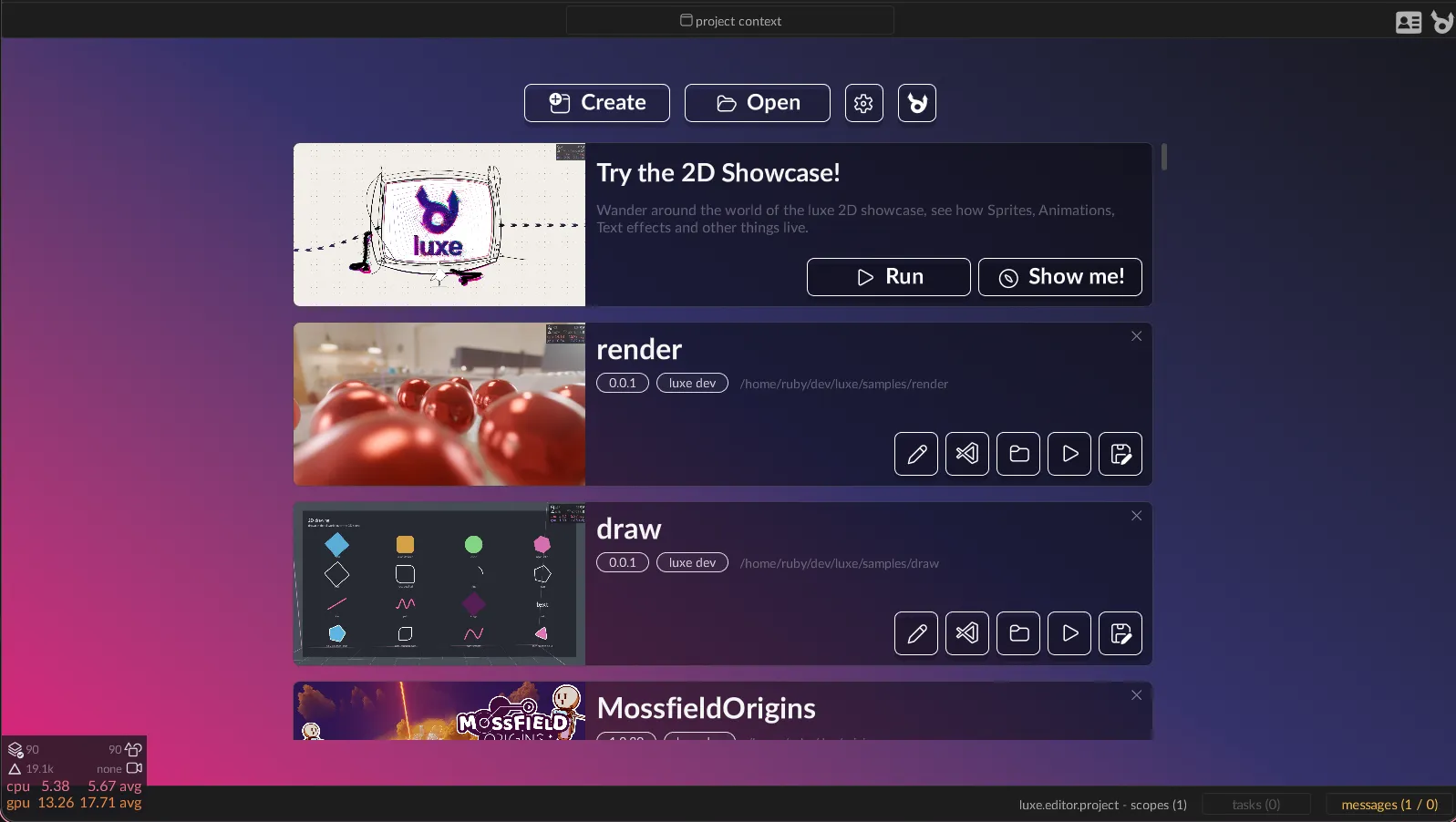
Opened project page
Section titled “Opened project page”Once a project is opened, you get a page with tools like deploying a build, and switching to different editor contexts.
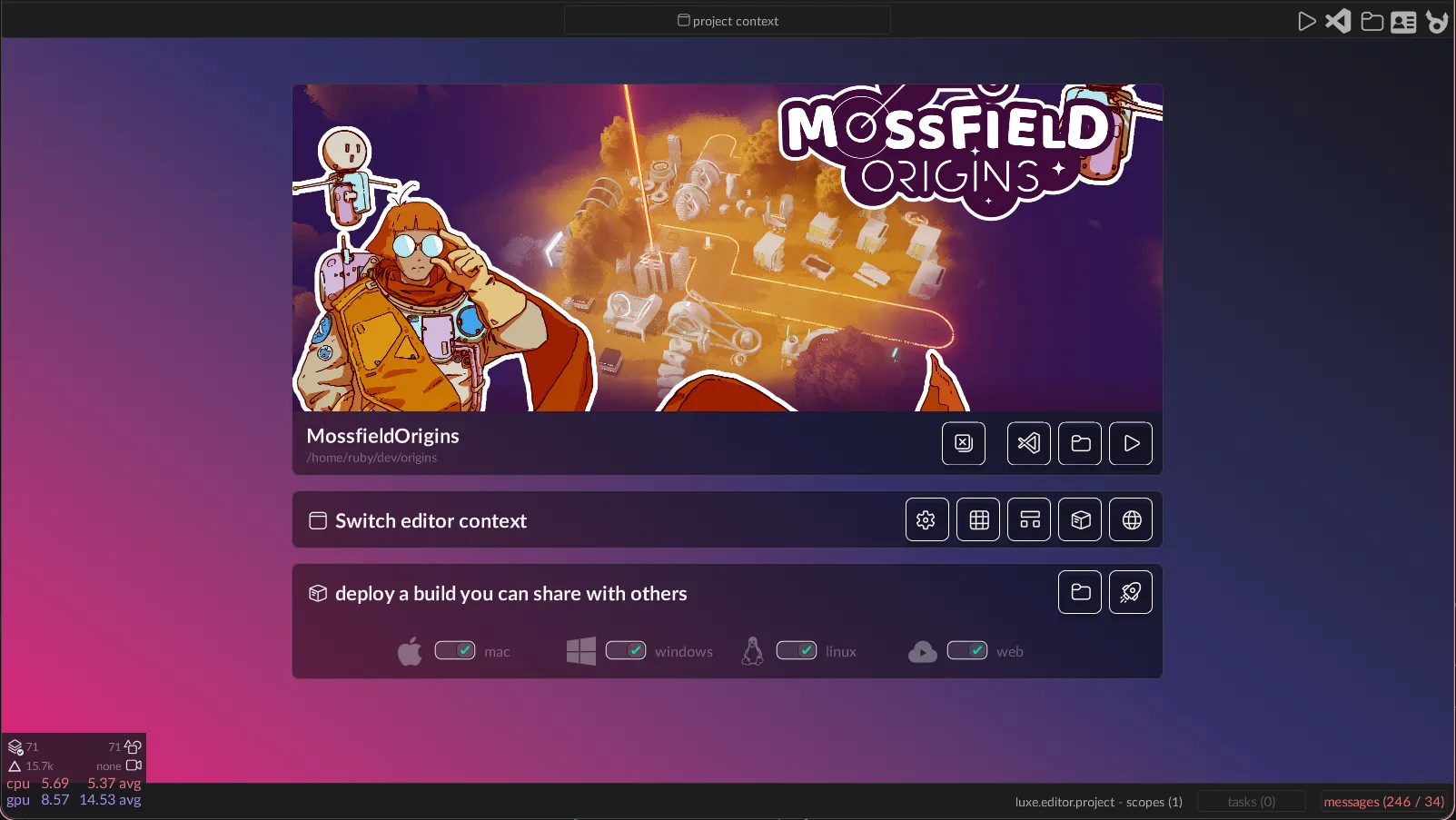
Create project page
Section titled “Create project page”Use the create button to make a new project.
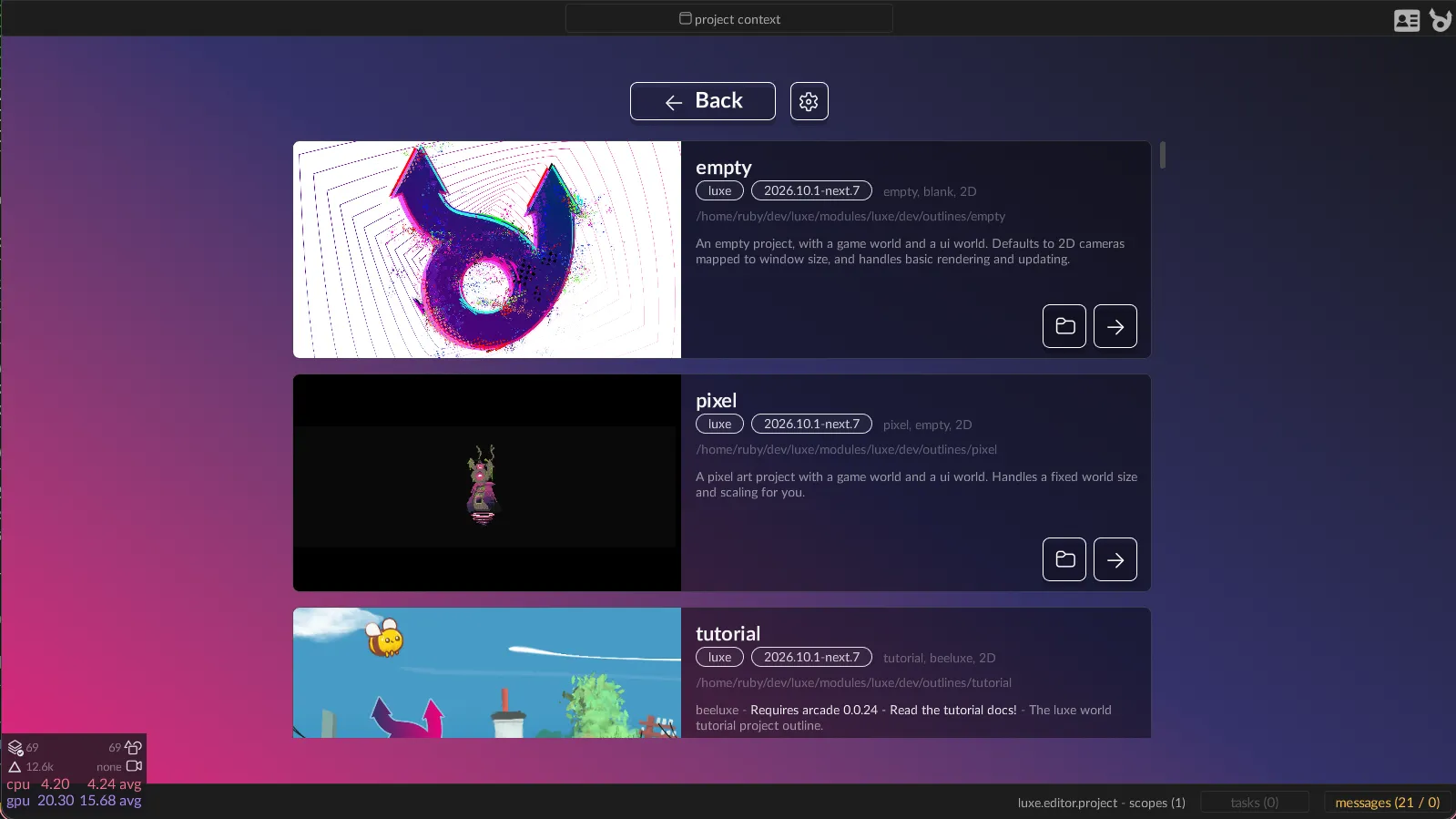
Installing code editor support
Section titled “Installing code editor support”Currently the primary supported code editor is Visual Studio Code.
It’s a free cross platform editor with great support for custom extensions. The extension includes features like code completion, jump to definition, and so on.
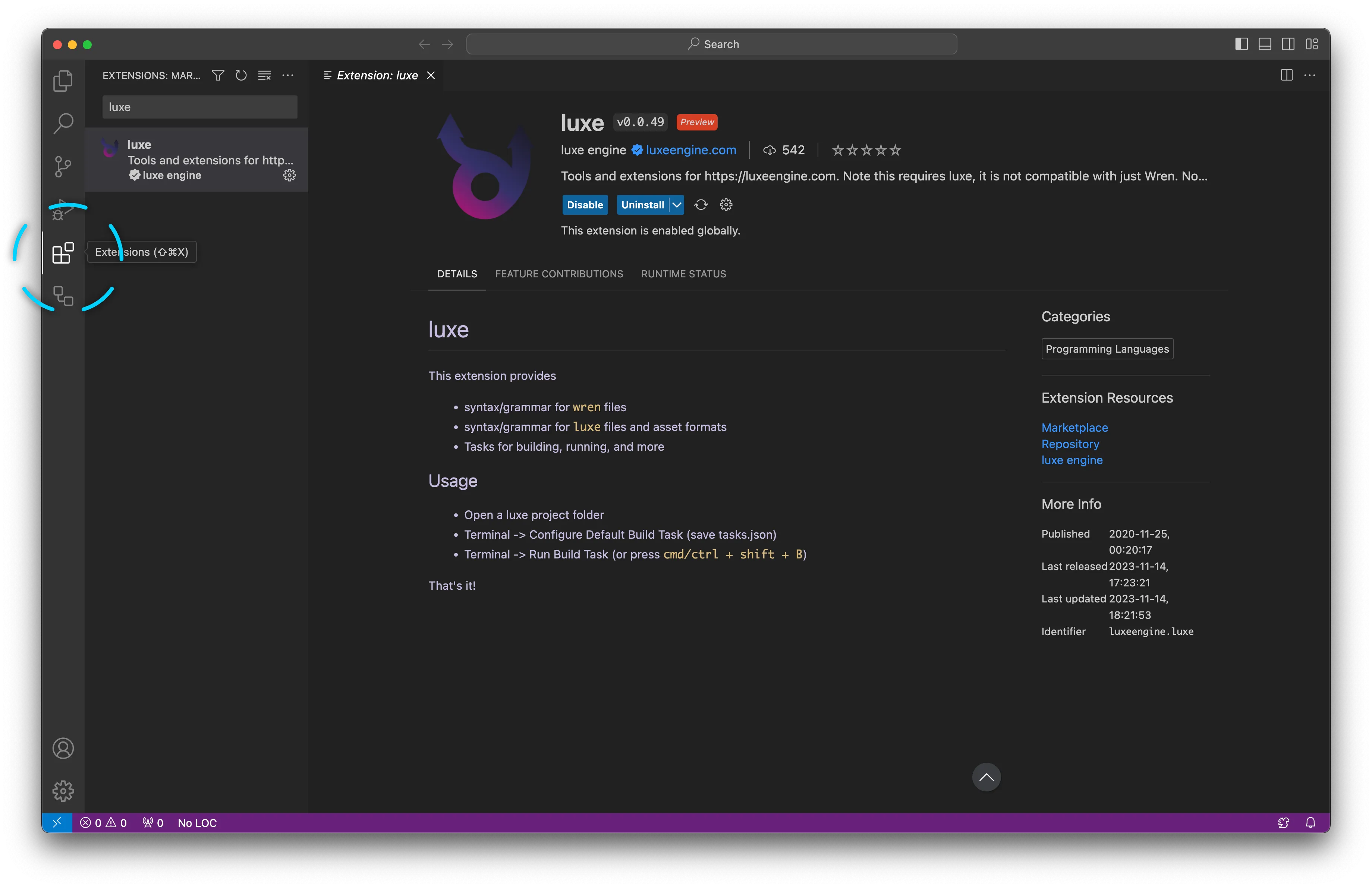
To install support for luxe, open the extensions panel.
This is an icon on the side bar, or found via the View -> Extensions menu.
Search the extensions for ‘luxe’ and when found, select ‘install’.
(Make sure it’s the official one). View the extension in the marketplace..
ONCE INSTALLED, SWITCH TO THE PRE RELEASE VERSION
Section titled “ONCE INSTALLED, SWITCH TO THE PRE RELEASE VERSION”The standalone luxe version requires the pre release version of the luxe extension.
Troubleshooting
Section titled “Troubleshooting”You can find extra information or ask for help on the community forum.